Connected, free and mixed mode
When translating a page in TYPO3, you can choose between 3 modes. Each mode affects how you add and edit content:
- Connected mode
- Free mode
- Mixed mode
Connected mode
Connected mode
If you choose Translate, once the page is translated, the content elements will automatically be in Connected mode. This means that the elements on the original language page are directly linked to those on the translated page.
In Connected mode, you can only use functions to edit, hide, or delete elements on the translated version. If you want to add a new element (by clicking the + Content button), you can only do this on the original language page. Once the new element is translated and made visible, it will appear on the translated page. When you move an element on the original language page, the translated element will automatically follow.
If you need to change the translated page to Free mode to have more editing options, you should click on the Switch to Free Mode button. However, do this only if you are certain it is necessary, as reverting to connected mode requires considerable effort
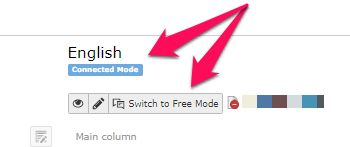
If the translated page's elements are in the wrong order despite being in Connected mode, you can follow these steps:
- Rearrange elements on the original language page (possibly placing them incorrectly).
- Wait a moment for the system to register the rearrangement. TYPO3 first moves the elements on the original page and then adjusts the translated version accordingly.
- Move the elements back to their original order on the original language page.
The elements on the translated page should now match the order on the original language page.
Free mode
Free mode
If you choose Copy, after the page is translated, the translated elements are created as free and independent of those on the original language page – known as Free mode. Any changes to content on the original language page (such as deleting or moving elements) will not be reflected on the translated version.
In Free mode, you can:
- Change, hide, or remove elements on the original page and the translated page independently of each other.
- Add new, independent elements by clicking the + Content button on either the original page or the translated page.
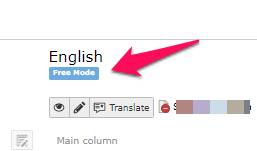
Mixed mode
Mixed mode
If the translated page is in Mixed mode, it is because some of the translated elements are in Connected mode, while others are in Free mode.
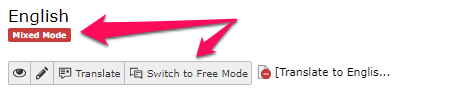
Mixed mode will function similarly to Connected mode in that you cannot add new content elements on the translated page. New content elements must first be added to the original page.
Mixed mode typically occurs if:
1. You are in Connected mode and create a content element (+ Content) on the original page, then switch the language from Danish to English in the element’s Language tab.
- Mixed mode occurs in this case because the content element ONLY exists on the translated page.
2. You are in Free mode and have created a content element (+ Content) on the original page and translated the element using the language menu at the top (English [NEW]).
- Mixed mode occurs in this case because the original content element is connected with its translation.

What should you choose?
Which translation method you should choose depends on the situation. The most common is Translate and Connected mode.
- If you want the original page and the translation to look alike, use Translate (with Connected mode). This means you maintain consistency between the language versions of the elements.
- If you want to build the translated page independently from the original page, use Copy (with Free mode). This allows you to create an element on the translated page without first creating it on the original language. This can be relevant if, for example, the target audiences for the two languages are expected to see different content.
Would you like to switch from Free mode or Mixed mode to Connected mode?
Would you like to switch from Free mode or Mixed mode to Connected mode?
If you have elements that you want to relate to each other, you can switch from Free mode to Connected mode.
- We recommend that you first and foremost save all the content on the English version of the page another place than in TYPO3, e.g. in Word. You have to paste the English content in the new content elements later.
- Now you must delete every content element on the English version of the page, until there are not more elements in English.
- You are starting from scratch: Begin with translating the page and the page contents from the bottom by using the Translate-button. The page will now shift to being in Connected Mode, and the Danish elements are getting English counterparts that are directly connected.
Edit the new English elements with content in English, and delete the Danish content that was automatically transferred in the translating process.