Display LaTeX on your TYPO3 page
Get started
In this guide, you will learn how to display LaTeX formulas on your TYPO3 site. The guide is divided into three parts, which briefly involve:
- Uploading a configuration file to the File list
- Inserting a specific HTML element on the pages where you want to display your LaTeX formulas
- Adding one or more HTML elements with your LaTeX code on the relevant page
Note: As you work through the guide, make sure to adjust the web addresses to match your website, not those in the guide.
$a^2+b^2=c^2$
\[ \sum_{k=1}^n\left.\frac{1}{k!}\frac{d^k}{dt^k}\right|_{t=0}f(u(t)) + \int_0^1 \frac{(1-t)^n }{n!} \frac{d^{n+1}}{dt^{n+1}} f(u(t))\, dt. \]
\[ \sum_{n=1}^\infty \frac{1}{n^2} = \frac{\pi^2}{6} \]
\[ \begin{aligned} \nabla \times \vec{\mathbf{B}} -\, \frac1c\, \frac{\partial\vec{\mathbf{E}}}{\partial t} & = \frac{4\pi}{c}\vec{\mathbf{j}} \\ \nabla \cdot \vec{\mathbf{E}} & = 4 \pi \rho \\ \nabla \times \vec{\mathbf{E}}\, +\, \frac1c\, \frac{\partial\vec{\mathbf{B}}}{\partial t} & = \vec{\mathbf{0}} \\ \nabla \cdot \vec{\mathbf{B}} & = 0 \end{aligned} \]
1. Upload configuration file to the file list
1. Upload configuration file to the file list
You only need to carry out steps 1–6 once:
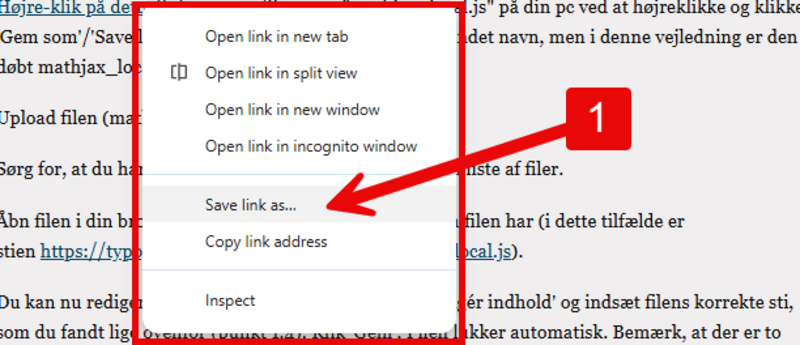
- Right-click this link and save the file mathjax_local.js to your computer by selecting Save as / Save link as. You may rename the file if you wish. In this guide, it is called mathjax_local.js.
- Upload the file (mathjax_local.js) to the File list in TYPO3.
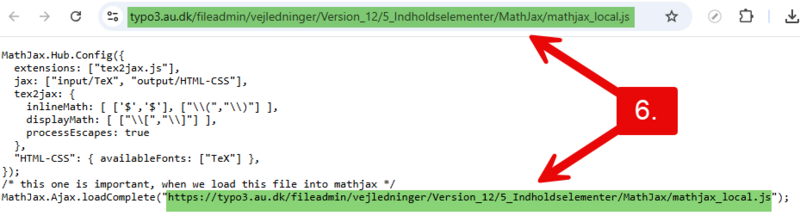
- Click View, which opens the file in your browser. Select and copy the path shown in your browser’s address bar.
(In this guide, the path is:
typo3.au.dk/fileadmin/vejledninger/Version_12/5_Indholdselementer/MathJax/mathjax_local.js.) - Click the three dots (More options) and choose Edit content.
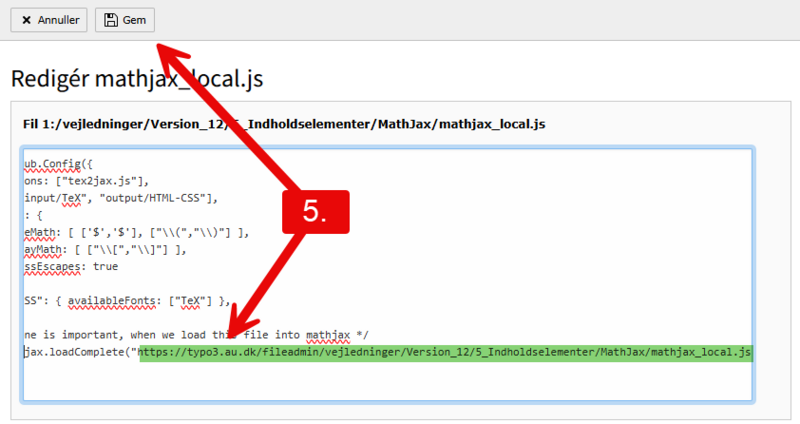
- You can now insert the correct path to the file, which you found in step 3 above. Click Save.
- If you open the file again via Filelist and View, the updated correct path will appear.
You may need to reload/refresh your browser.
Note: Make sure to adjust the URLs so they match your own website, not the ones shown in this guide.

2. Insert an HTML element on each page where LaTeX should be displayed
2. Insert an HTML element on each page where LaTeX should be displayed
Repeat this step on each page where you want to display LaTeX formulas:
- Insert an HTML element on the TYPO3 pages where you want LaTeX/mathematics interpretation. The element should be placed early/at the top of the page. It is not visible on the frontend. Your HTML element should contain the code below, which you can copy and paste. But REMEMBER to update the code to reference the path you found in step 3 above.
<script type="text/javascript" src="https://cdnjs.cloudflare.com/ajax/libs/mathjax/2.7.1/MathJax.js?config=TeX-AMS_HTML,https://typo3.au.dk/fileadmin/vejledninger/Version_12/5_Indholdselementer/MathJax/mathjax_local.js"></script>
- If you need MathJax on many pages, you can contact your websupport and ask them to add this code to the domain’s template.
3. Insert text elements with your LaTeX code
3. Insert text elements with your LaTeX code
This step can be repeated as many times as you need formulas:
- You can now insert as many text elements with LaTeX code as you like. You can place them in containers (grids) to arrange them neatly next to each other or one below the other.
LaTeX in news and events?
LaTeX in news and events?
You can insert mathematical expressions into news and events. You need to perform step 2 above on your single-view page for news and on your single-view page for events (and their translated pages). This is where you have a news plugin with News System: Detail View. Afterward, you insert the LaTeX code into the news text editor.