Crop images with TYPO3's image editor
This guide explains how to crop an image using TYPO3’s built-in image editor. The way you crop your image is the same whether you have selected the element Text and Images, Images Only, Text and Media, or you are editing an image in the media tab of a news item.
- Cropping an image in TYPO3 only affects how the image is displayed on your website. The original file in the filelist remains unchanged — its size and resolution are not modified.
- If you want to resize your image before uploading it to the filelist, you can use Adobe Photoshop or Lightroom, or a smaller editing tool such as IrfanView (free to download for PC) or Canva, where you log in and edit your image.
Open image editor
Open image editor
We assume you’ve already uploaded your image to the filelist and added it to a content element using either the Add image or Add media file function. If not, you can follow this guide: Add images to your page.
How to open the image editor:
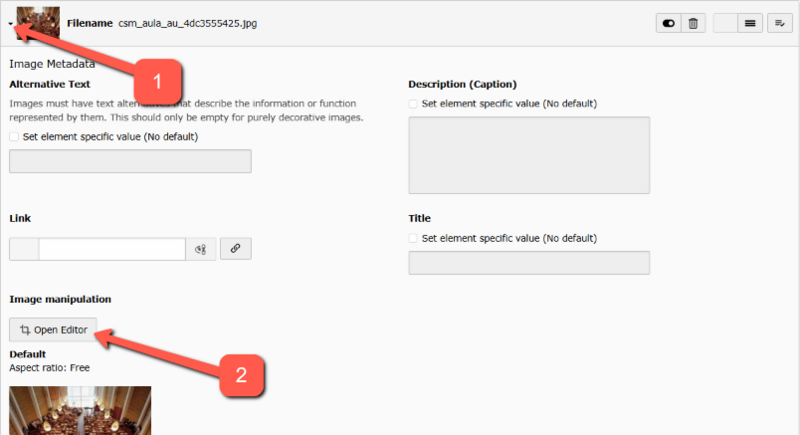
- In the Images or Media tab of the content element you have chosen, click the small arrow to the left of your image. This will expand the view to show Image Metadata.
- Click Open Editor to launch TYPO3’s image editor.
Crop your image
Crop your image
Once you're inside TYPO3’s image editor, keep in mind that you’re only adjusting how the image is displayed — not its original size or resolution (DPI).
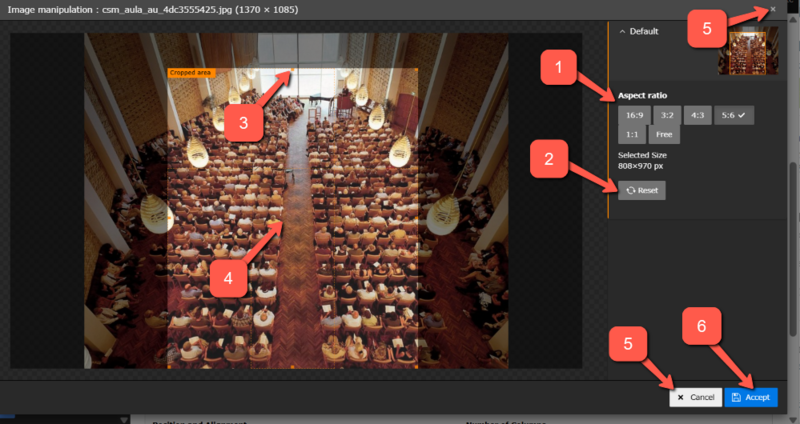
- Select an Aspect ratio. By default, the option is Free crop. You can choose from five fixed aspect ratios: 16:9, 3:2, 4:3, 5:6, and 1:1.
- You can always click Reset to start over.
- You can click and drag the edges to scale your image. If you have selected one of the five fixed aspect ratios, the ratio will be maintained as you scale up or down.
- You can click anywhere on the selected area and move the focus (drag and drop).
- You can cancel the image editor by clicking the X or Cancel.
- When you want to finish and save your crop selection, click Accept.
When you return to the Images tab, remember to click Save!
You can always return to the editor later to adjust your crop. The original image remains untouched and available in the editor.
Additional options for image adjustments
Additional options for image adjustments
At the bottom of the Images or Media tab you have a few more options available:
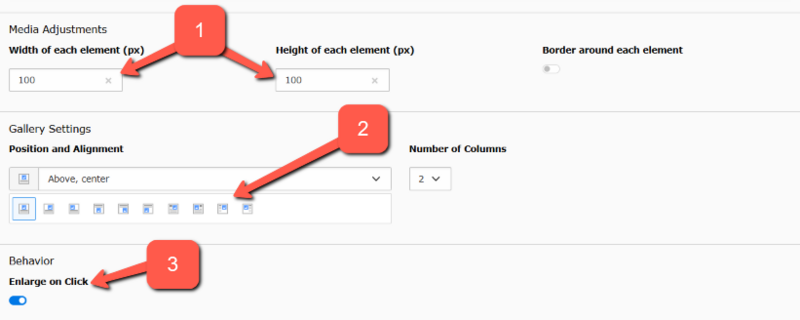
- After cropping your image, you can scale it further under Media Adjustments, for example to create a thumbnail (e.g. 100 × 100 px).
- You can choose from various layout options to position the image in relation to the text under Gallery Settings.
- If you enable Enlarge on Click, your cropped image will be displayed as an overlay (e.g. 500 × 500 px) when clicked. If you’ve already added a link to the image under its metadata, the Enlarge on Click feature will be ignored.
Note: If you’ve selected the Images Only content element (as opposed to Text and Images, for example), fewer positioning and adjustment options are available.